

Join a Classroom session
EOS announcement
ViewSonic is announcing the official End of Service (EOS) for myViewBoard Classroom, effective December 31, 2025. After this date, the Classroom platform will no longer be accessible or supported.
For more details, refer to the articles below:
FAQ: Classroom End-of-Service information
Classroom EOS 2025 announcement
Important
The EOS date applies globally, with the exception of Taiwan. Users in Taiwan will retain access to myViewBoard Classroom until January 2027.
After beginning a Classroom session, ensure students can join your session.
Using a session ID
- The teacher should display the session information as outlined in the invite students article.
- Three options are available for students to join a session:
- Input the shared URL.
- Scan the displayed QR code.
- Go to
https://myviewboard.com/classroom/studentand input the session ID.
- The students should input their name before entering.
- Enter a session password if required.
- A student canvas should load.
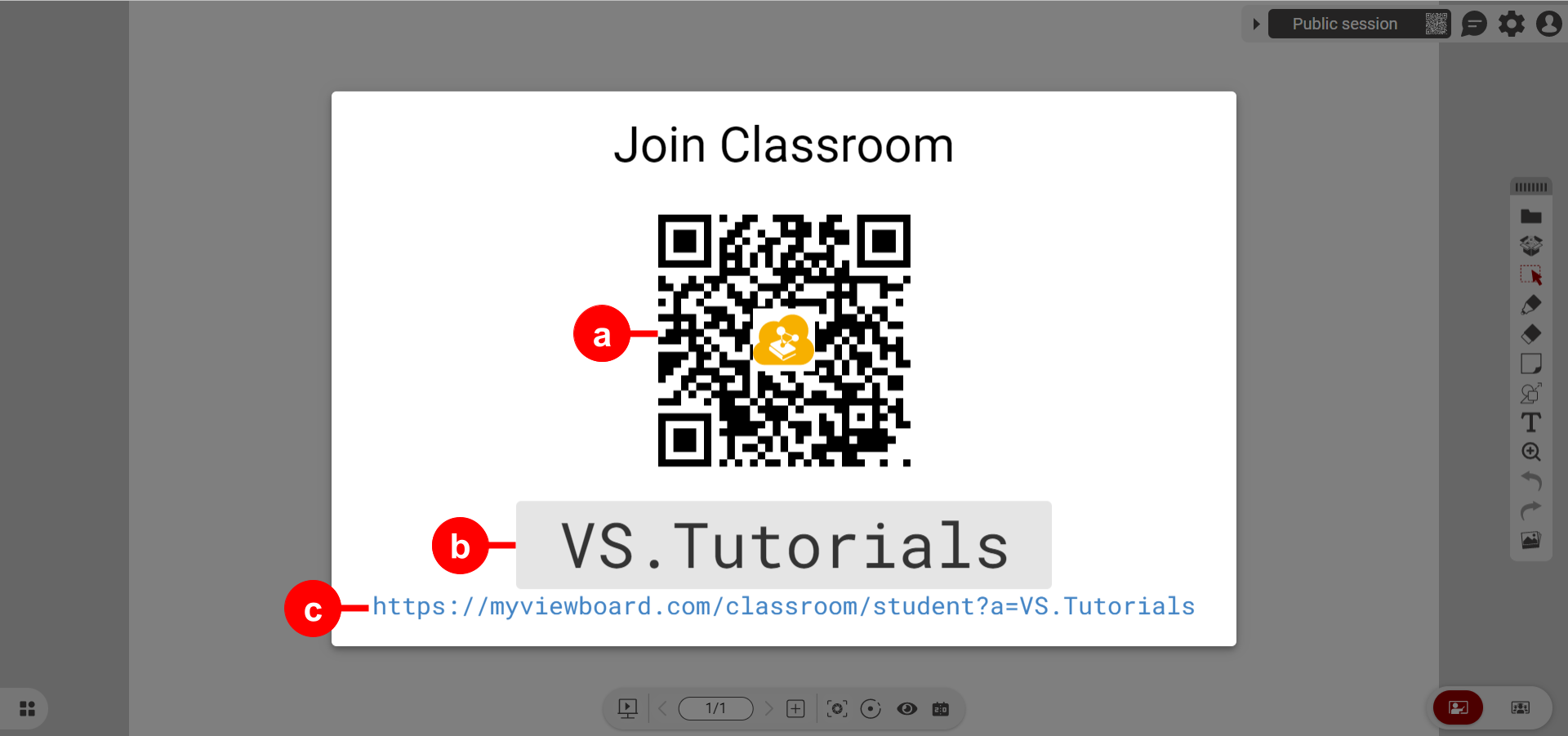 Example of session info with labeled info: a) QR code which opens student portal, b) session ID to be input in student portal, c) URL which opens student portal.
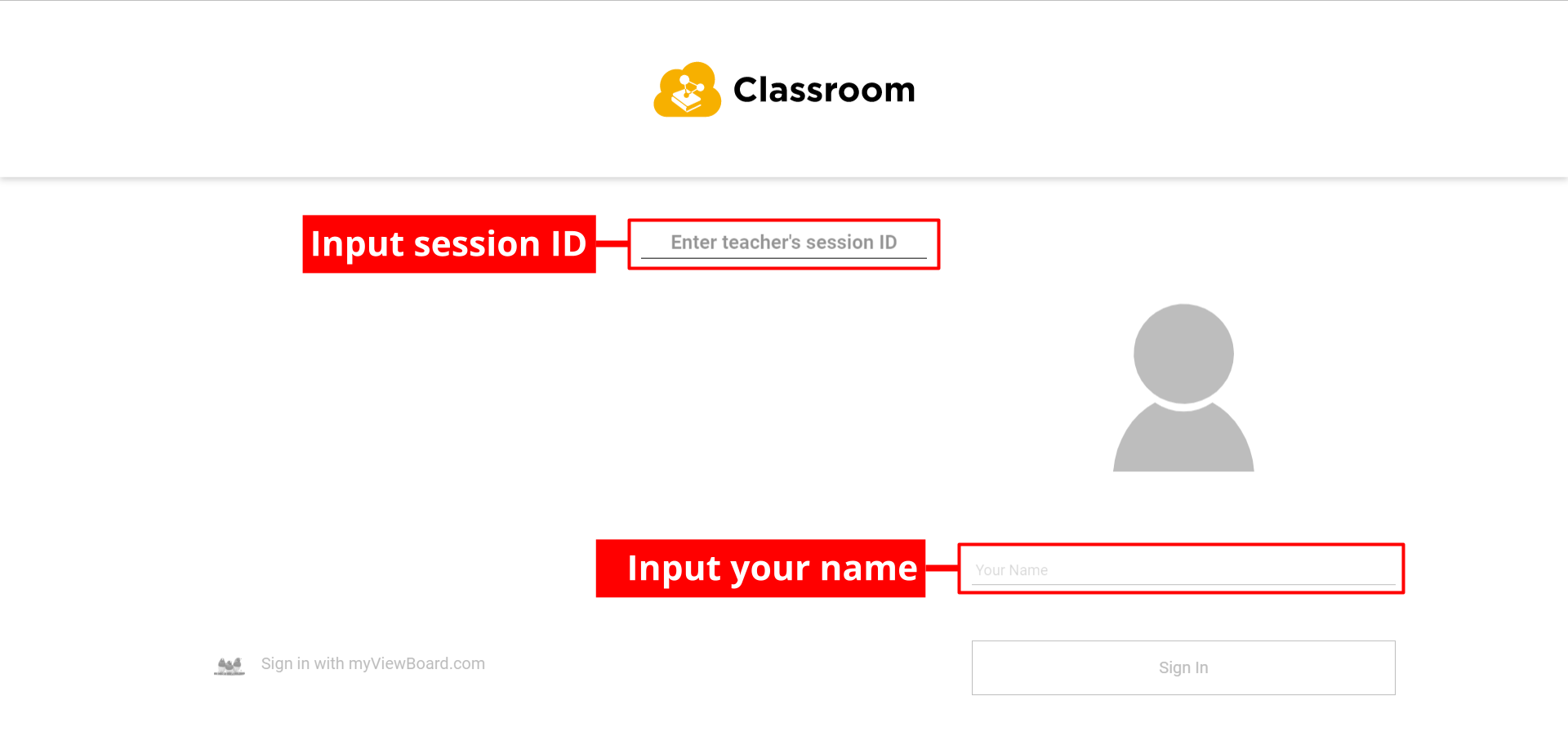 Student portal (myviewboard.com/classroom/student) with required fields highlighted.
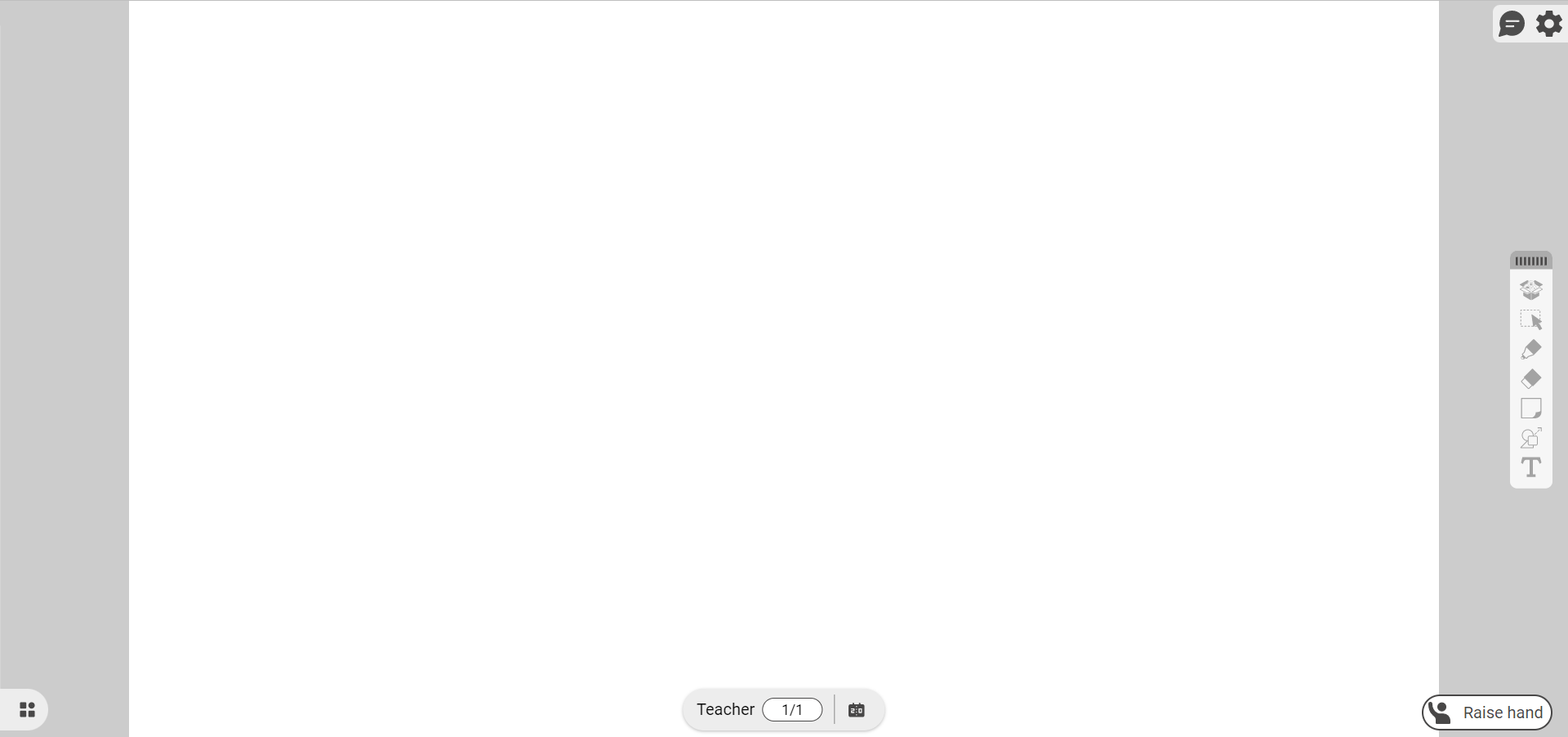 Student canvas view after successfully joining a session.
Join via Google Classroom .svg)
To join via Google Classroom, teachers must first trigger a post to Google Classroom from myViewBoard Classroom.
- Go to your Google Classroom space.
- Locate your teacher's invitation post.
- Open the link, and then enter your name (and session password if required).
- A student canvas should load.