

Invite students to Classroom
EOS announcement
ViewSonic is announcing the official End of Service (EOS) for myViewBoard Classroom, effective December 31, 2025. After this date, the Classroom platform will no longer be accessible or supported.
For more details, refer to the articles below:
FAQ: Classroom End-of-Service information
Classroom EOS 2025 announcement
Important
The EOS date applies globally, with the exception of Taiwan. Users in Taiwan will retain access to myViewBoard Classroom until January 2027.
Attending online sessions has become so easy for students. Access Classroom directly from a web browser, without downloading any software. No myViewBoard account is required to participate in lessons.
Steps to invite
- Press the area of session settings bar at the top-right where Public session (or Private session) and a QR code icon are displaying.
- A unique session ID, QR code, and URL will display.
- Students can scan the QR code with the Companion app, or another QR code reader, and be redirected to join the Classroom session. (This may be convenient if students are using mobile devices.)
- Students can input the URL shared by the teacher into an internet browser (example:
https://myviewboard.com/classroom/student?c=xxxxxx) - Teachers can also share the URL to students through a messaging app or by email by pressing the displayed URL, which copies the URL.
- Then, students should enter their name and the session password (if a password has been set by the teacher) to join the Classroom session.
 Invite students button highlighted.
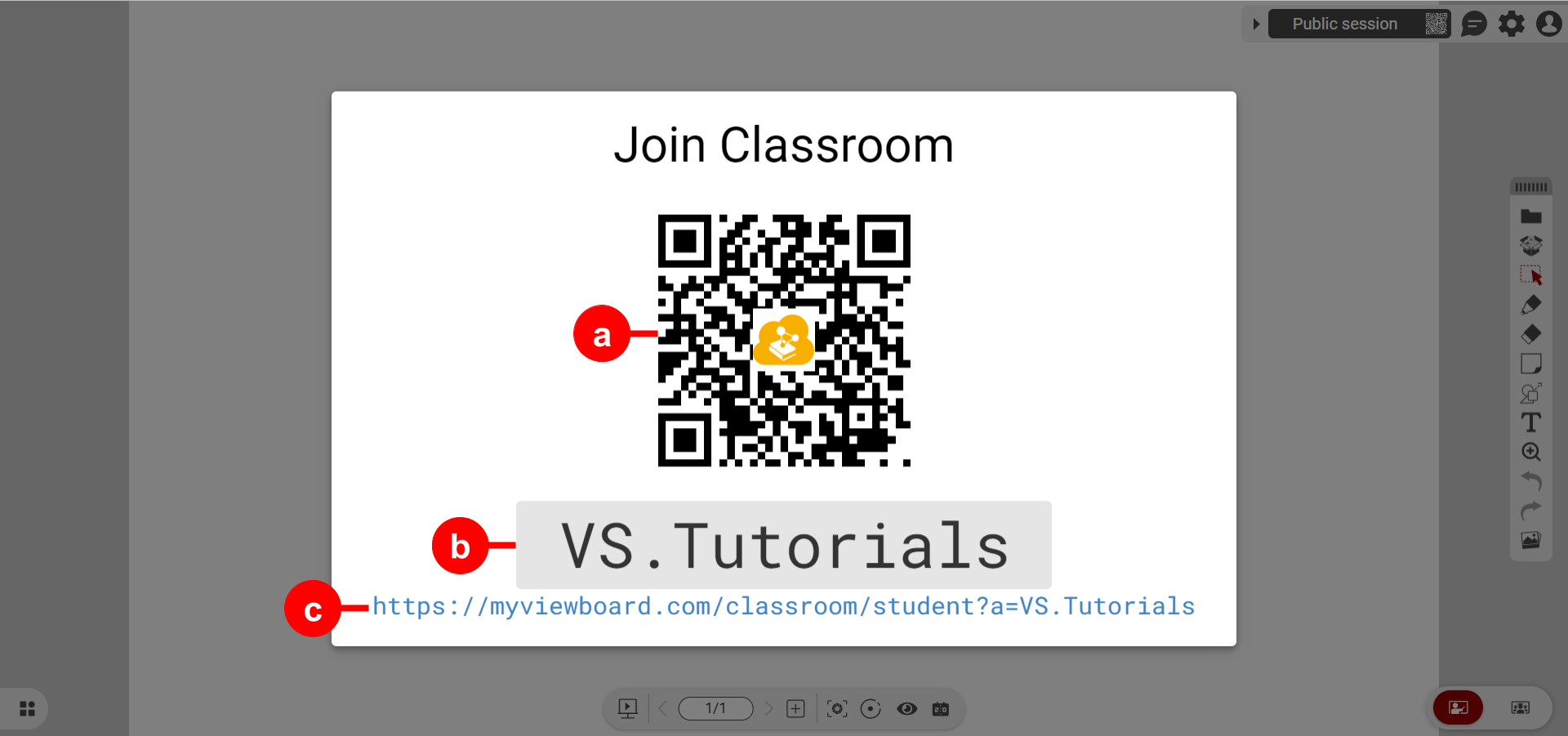 Example of session info with labeled info: a) QR code which opens student portal, b) session ID to be input in student portal, c) URL which opens student portal.
Importing students via Google Classroom
To import students via Google Classroom, the Google Classroom account must first be bound to the host's myViewBoard account. Do this in FollowMe's Cloud Integration settings at myviewboard.com.
After setting up cloud integration, follow these steps:
- On the Classroom canvas, press
 to enter Classroom settings.
 - Go to
 Cloud Integrations.
 - Press Bind in the row with Google Classroom.
- Follow the steps to link your Google Classroom to myViewBoard Classroom in the new window.
- This account should be the same one used for the Google Classroom you wish to use for inviting students.
- Google Classroom should now appear as Bound in Classroom settings.
- On Cloud Integrations, press the drop-down button.
- Select the Google class you wish invite to your Classroom session.
- When this process is complete, a post will be created in your Google Classroom where students can access this myViewBoard Classroom session.